Use CloudTally
Create and manage budgets
Create budgets for Hetzner Cloud, configure threshold evaluations, track spend against limits, and manage organisation quotas in CloudTally.
Last updated: 2026-10-10
On this page
Budgets in CloudTally help engineering and finance teams establish spending guardrails across Hetzner Cloud infrastructure. You can set spend limits for entire organisations, scope them to specific projects or resource types, define alert thresholds, and monitor actual and projected spend.
This guide explains how to create and scope a budget, select an evaluation mode, understand budget risk states on the dashboard, and manage your organisation's budget quotas.
CloudTally provides read-only monitoring. A budget does not cap, throttle, or terminate running Hetzner resources when an alert threshold is crossed. To adjust capacity or stop resources, use your Hetzner Cloud Console.
Prerequisites
Before creating a budget, ensure that:
- You have an active CloudTally account with appropriate permissions:
- Owner and Admin: Can create, edit, and delete budgets.
- Member: Can create and edit budgets, but cannot delete them.
- Viewer: Read-only access to budgets and spend status.
- At least one Hetzner project is connected and actively syncing (Connect your Hetzner project).
- To verify that project data is current, see Manage Hetzner projects and data sync.
Plan quotas
- Free plan: Includes 1 active budget.
- Pro plan: Includes up to 15 active budgets.
Step 1: Open Budgets and start creation
From the main navigation, select Budgets.
If your organisation has spending history, CloudTally may display a prompt titled Start with a forecast-based budget. This calculates a suggested baseline with 10% headroom based on recent spend. Click Use to prefill the creation form, or click Create Budget to open the form directly.
Step 2: Configure budget parameters
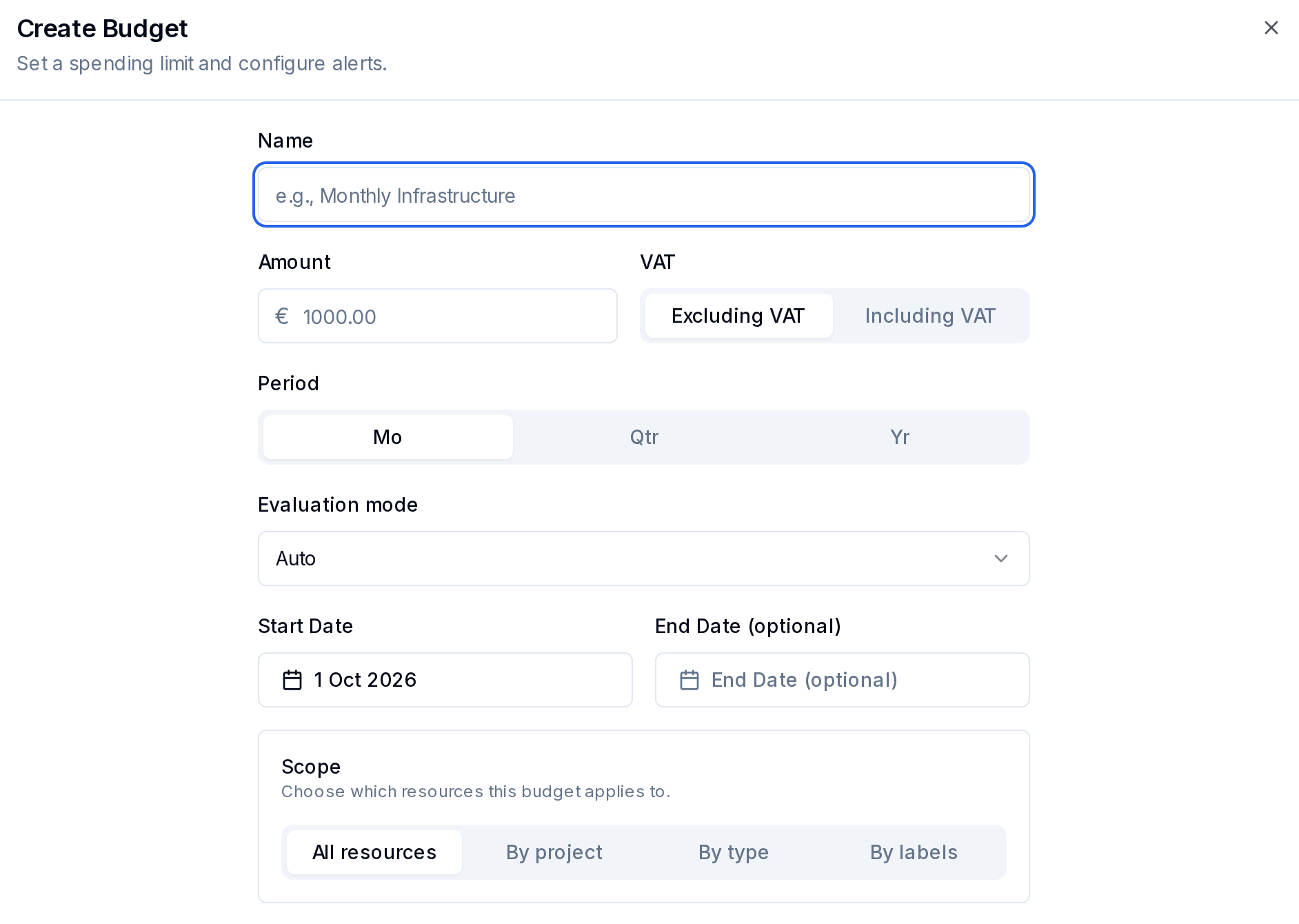
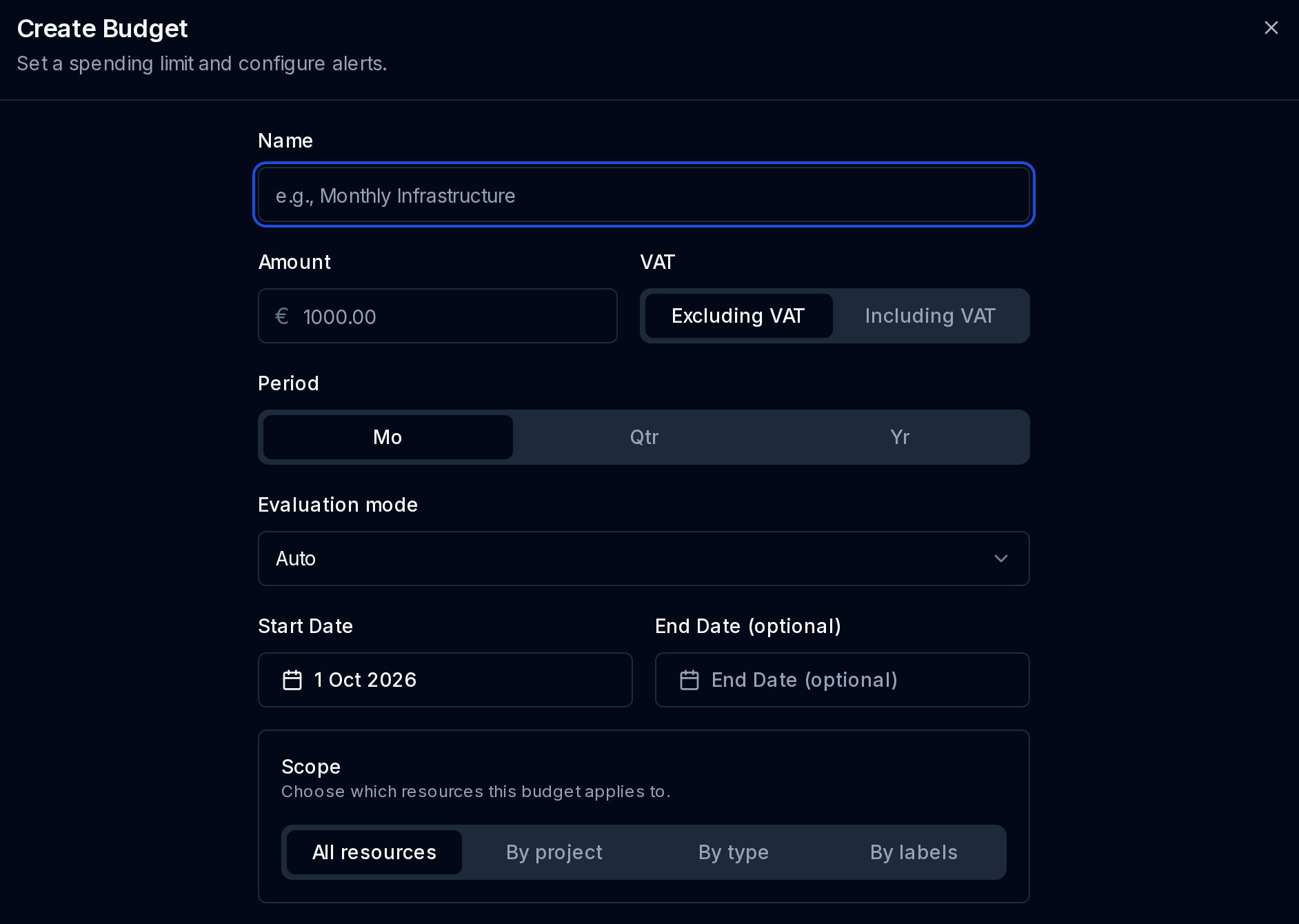
Fill in the primary budget fields in the Create Budget dialogue:
- Name: Enter a descriptive label (such as
Monthly InfrastructureorCore Database Cluster). - Amount: Enter the spending ceiling in your organisation's display currency, usually EUR or USD. CloudTally sets this from the first connected project's pricing data; you can view it, but not change it, under Settings → General → Display currency.
- VAT: Choose Excluding VAT or Including VAT. This choice is saved for this budget. The organisation’s cost display default applies to new budgets; changing it later does not change an existing budget’s saved choice.
- Period: Choose Mo for monthly, Qtr for quarterly or Yr for yearly.
- Evaluation mode:
- Auto: CloudTally uses Smart forecast where the budget can use it, and Run-rate forecast otherwise.
- Threshold tracking: Tracks actual spend against the budget threshold.
- Run-rate forecast: Projects monthly spend from the current spending pace.
- Smart forecast: (Pro plan) Works only for monthly budgets that apply to All resources, the whole organisation. Quarterly and yearly budgets, and budgets limited by project, type or labels, cannot use it: the form does not offer it, and if you had already chosen it, the form switches back to Auto.
- Start Date and End Date (optional): Monthly budgets follow calendar months; the Start Date sets when the budget begins. The start date defaults to the first day of the current month (for example, 1 Oct 2026). The end date is optional for ongoing infrastructure.
Step 3: Define budget scope
Under Scope, use the Apply budget to control to choose which resources count toward the budget:
- All resources: Tracks total infrastructure spending across every connected Hetzner project.
- By project: Restricts the budget to one or more selected Hetzner projects.
- By type: Restricts the budget to specific categories under the Resource Types selector, such as Server, Volume, Load Balancer, Floating IP, Primary IP, Snapshot, Backup, Network, or Traffic. Includes Select all and Deselect all shortcuts.
- By labels: Scopes the budget to resources matching specified key-value label pairs configured in Hetzner.
Step 4: Set alert thresholds
Under Alert Thresholds, specify the percentage levels at which alert notifications are triggered:
- By default, CloudTally provides thresholds at
80%,90%, and100%. - Click Add threshold to define an additional percentage milestone.
- Click the delete icon beside any row to remove that threshold.
Use Send forecast alerts to receive warnings about projected spend at the end of the period. This setting controls alerts; it does not change the forecast or the budget status. Actual threshold crossings and forecast warnings are different alert bases.
Click Create to activate the budget.
Notification delivery and channel routing
The budget creation form configures spending limits and alert thresholds, but does not configure recipient email addresses or webhook URLs.
Notification delivery is managed separately at the organisation level:
- Triggered budget alerts route to the in-app Notifications inbox by default, subject to personal and organisation alert-type settings.
- To send alerts to external email addresses or Slack channels, an Owner or Admin configures delivery channels and routing rules under Settings → Alerts (on Free, email recipients are limited to the organisation Owner/Admin default set; custom recipients and Slack require Pro).
- For instructions on setting up delivery channels and routing, see Configure alerts and notifications.
Monitoring budget health and risk states
Budgets are evaluated as incoming data syncs. Compare spend already incurred with the forecast before deciding whether to investigate.
Budgets page table
The summary shows Active budgets, Needs attention and Over budget. In each row:
- Current period identifies the dates being evaluated.
- Spend vs limit shows actual spend against the budget, with threshold markers and a marker for elapsed time in the period.
- Forecast at period end shows projected spend separately from actual spend.
For example, On track and Projected near limit describe different outlooks. A forecast warning does not mean the budget has already been spent.
Budget detail
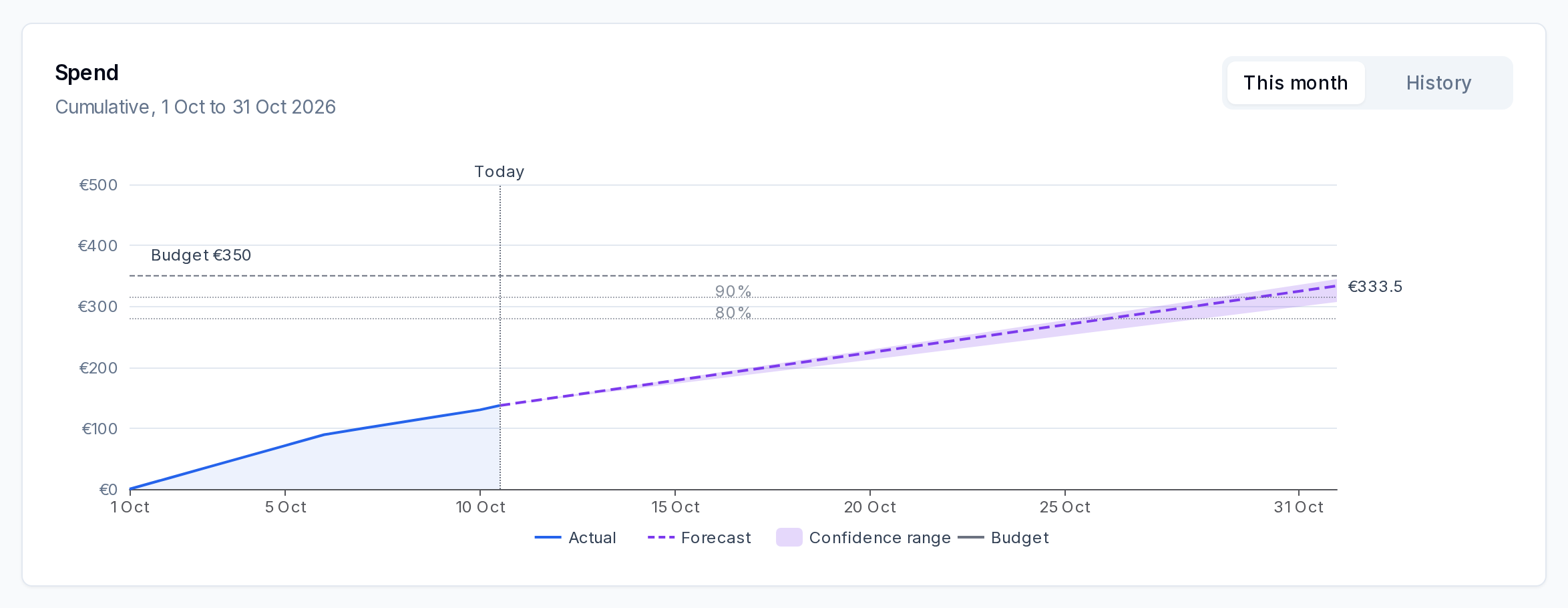
Click a budget row to open its detail page. For a monthly budget, compare Budget, Spent to date and Month-end forecast. The forecast includes a range; the summary also shows how many days remain.
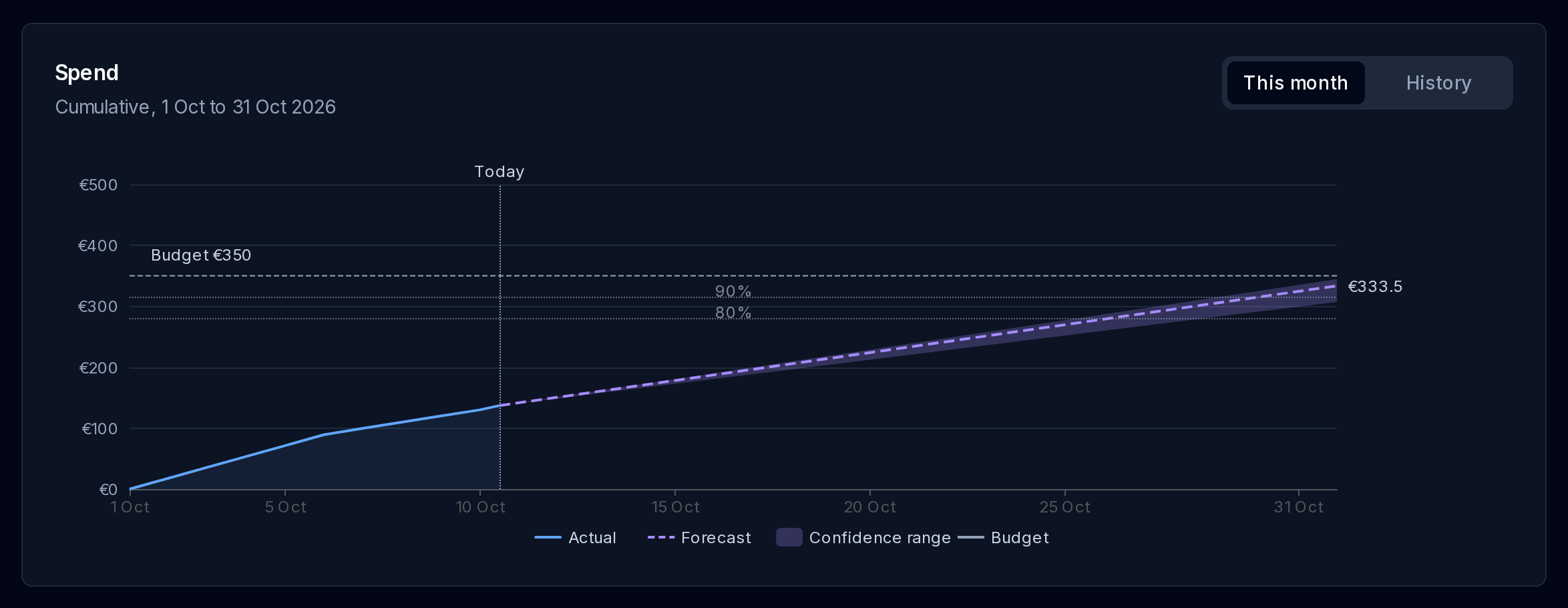
Under Spend, select This month to read the cumulative chart:
- Actual shows spend already incurred.
- Forecast shows projected spend for the rest of the month.
- Confidence range shows the range around that forecast.
- Budget and the threshold lines let you compare spend with your limits.
- Today marks the boundary between actual spend and the future forecast.
Select History to review previous periods.
The Alerts timeline labels entries as Actual or Forecast. It initially shows five entries; select Load more to see older entries. Configuration shows the saved VAT choice and alert settings. Check Alerts go to to understand the routing summary; In-app only means no external destination is listed there.
Dashboard Budget card
On the dashboard, the featured Budget card separates spent and projected totals and shows Projected remaining at month end. Its status describes that budget. The separate count of budgets needing attention can include other budgets; open Budgets to review them.
When a budget needs attention, investigate the resources driving spend.
Editing, deleting, and managing budget quotas
Editing a budget
To update a budget amount, period, or scope:
- Locate the budget in the Budgets table.
- Open the row actions menu and select Edit.
- Modify parameters in the Edit Budget dialogue and click Save Changes.
Stopping a budget
Budgets have no separate deactivate control. To stop a budget but keep it, edit it and set End Date (optional) to a past date that is not before its Start Date. After you save, its status shows Inactive and CloudTally no longer forecasts it. A stopped budget still counts towards your plan's budget quota; delete it to free the slot.
Deleting a budget
To remove a budget:
- In the row actions menu, select Delete.
- A confirmation dialogue opens: Delete budget?
- Confirming permanently deletes the budget and all its alert history. This action requires an Owner or Admin account and cannot be undone.
Managing plan quotas
- When you reach your tier quota (1 active budget on Free, up to 15 on Pro), CloudTally does not create another budget.
- If an organisation moves from Pro to Free with multiple active budgets, the existing budgets remain visible. Additional budgets cannot be created while the organisation is over the Free plan limit.
Troubleshooting
Budget shows no spend
- Scope mismatch: Verify that the selected project, type, or label filter contains running infrastructure.
- Initial sync in progress: If you recently connected a Hetzner project, wait for initial data processing to complete.
- Date boundary: Confirm the Start Date aligns with the period you wish to evaluate.
Alert did not arrive
- Check personal and organisation alert preferences under Settings → Alerts to ensure budget alerts are not muted.
- Ensure destination channels are configured and healthy under Settings → Alerts.
- Verify routing rules on Pro: confirm that Budget alerts are routed with a minimum severity that matches the alert level.
Related guides
- Understand your dashboard — Monitor spend trends and the primary budget risk card.
- Investigate why spend changed — Trace the resources driving budget consumption.
- Configure alerts and notifications — Manage delivery channels and alert routing.