Use CloudTally
Understand your CloudTally dashboard
Navigate your CloudTally dashboard, track month-to-date cloud spend, interpret smart forecasts, monitor budget health, and analyse cost breakdowns.
Last updated: 2026-10-17
On this page
The CloudTally dashboard provides financial and operational oversight for your Hetzner Cloud infrastructure. Rather than waiting for month-end invoices, the dashboard displays your latest synced data based on scheduled 15-minute background updates, showing current month-to-date accruals, spend trends, and month-end projections.
To view your current overview, open Dashboard from the main navigation. All monetary figures use your organisation's display currency, usually EUR or USD. CloudTally sets this from the first connected project's pricing data; you can view it under Settings → General → Display currency.
Display currency and VAT
The Display currency field in Settings → General is read-only. Check it to see which currency your organisation uses.
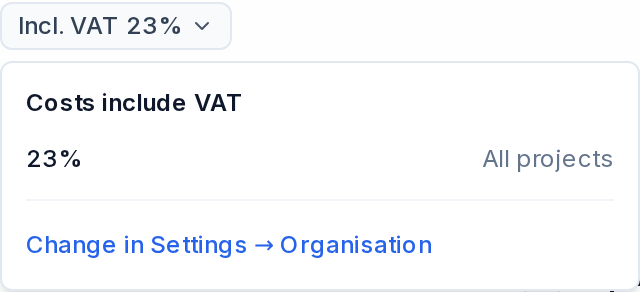
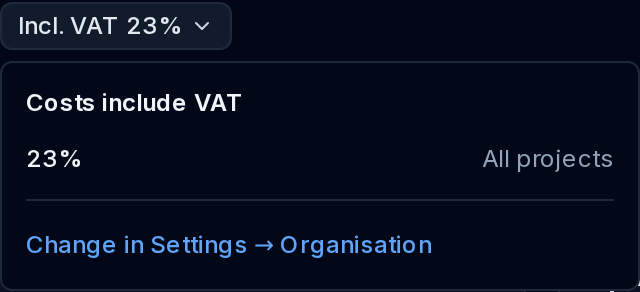
The header chip, such as Excl. VAT, tells you the VAT basis of displayed costs. Open it to read the explanation, such as Costs are shown without VAT., and follow Change in Settings → Organisation to the General page. Under Cost display, choose Exclude VAT or Include VAT and use Save.
This display default also applies to new budgets. Existing budgets keep their own saved VAT choice; see Create and manage budgets.
Summary cards
Three summary cards at the top of the dashboard outline your spending health.
1. This month
The This month card displays the actual accrued cost of your tracked infrastructure from the start of the current calendar month through the most recent update.
- Baseline comparison: An indicator compares your current spend against the equivalent elapsed period from the previous month (vs same period last month). This comparison normalises for the day of the month so you can assess changes against an equivalent timeframe rather than a complete prior month.
- Trend direction: An inline badge indicates the percentage change and whether spend is higher, lower, or flat compared to the baseline.
- Tracking timeline: For newly added connections, the card displays the start date from which spending has been observed.
2. Projected month-end
The Projected month-end card estimates total spending at the end of the current calendar month.
- Free plan: Calculates a linear run-rate projection based on average daily spend observed during the month to date.
- Pro plan: Uses smart forecasting that evaluates spend patterns, accounts for resource additions or removals, and filters non-recurring spikes.
- Forecast metrics: On Pro, the card displays a calculated confidence score and an expected range. Selecting the info control opens Forecast explanation, where you can check what drives your month-end forecast. Selecting the Projected month-end card opens the forecast chart directly in Cost Explorer.
3. Budget
The Budget card tracks spending against your active monthly budget limit.
- Status: The featured budget can show On track. Review its scope alongside its status.
- Spend and forecast: The card separates spent and projected totals, and shows Projected remaining at month end against the budgeted target.
- Other budgets: A count such as 1 budget needs attention can refer to a different budget from the featured one. Select the card to open Budgets, then click a row to read its detail and alert history.
- Empty state: If your organisation has not created a budget, the card displays No active budget with an option to open the budget creation view.
Hetzner monthly billing caps
Hetzner Cloud applies a monthly price cap to cloud servers. When a server runs throughout the billing month, its accrued cost flattens once it reaches that maximum monthly rate, and additional hourly charges cease for the rest of the billing cycle.
CloudTally reflects this billing behaviour:
- When tracked servers reach their maximum monthly rate, a cap indicator appears in the spend trend header: (such as
1 resource at monthly cap). - The indicator explains why daily spend accrual flattens for those servers during the remainder of the month.
- Clicking the chip opens the filtered Resources view showing all capped resources.
Spend trends and events
The Spend trend card charts cost accumulation across your infrastructure over time.
Date ranges and granularity
You can adjust the time window using the preset selector:
- Available presets are This month, Last month, Last 7 days, Last 30 days, Last 90 days, and Custom range.
- The Buckets menu provides intervals of Auto, 1h, 3h, 6h, 12h, Daily, Weekly, and Monthly.
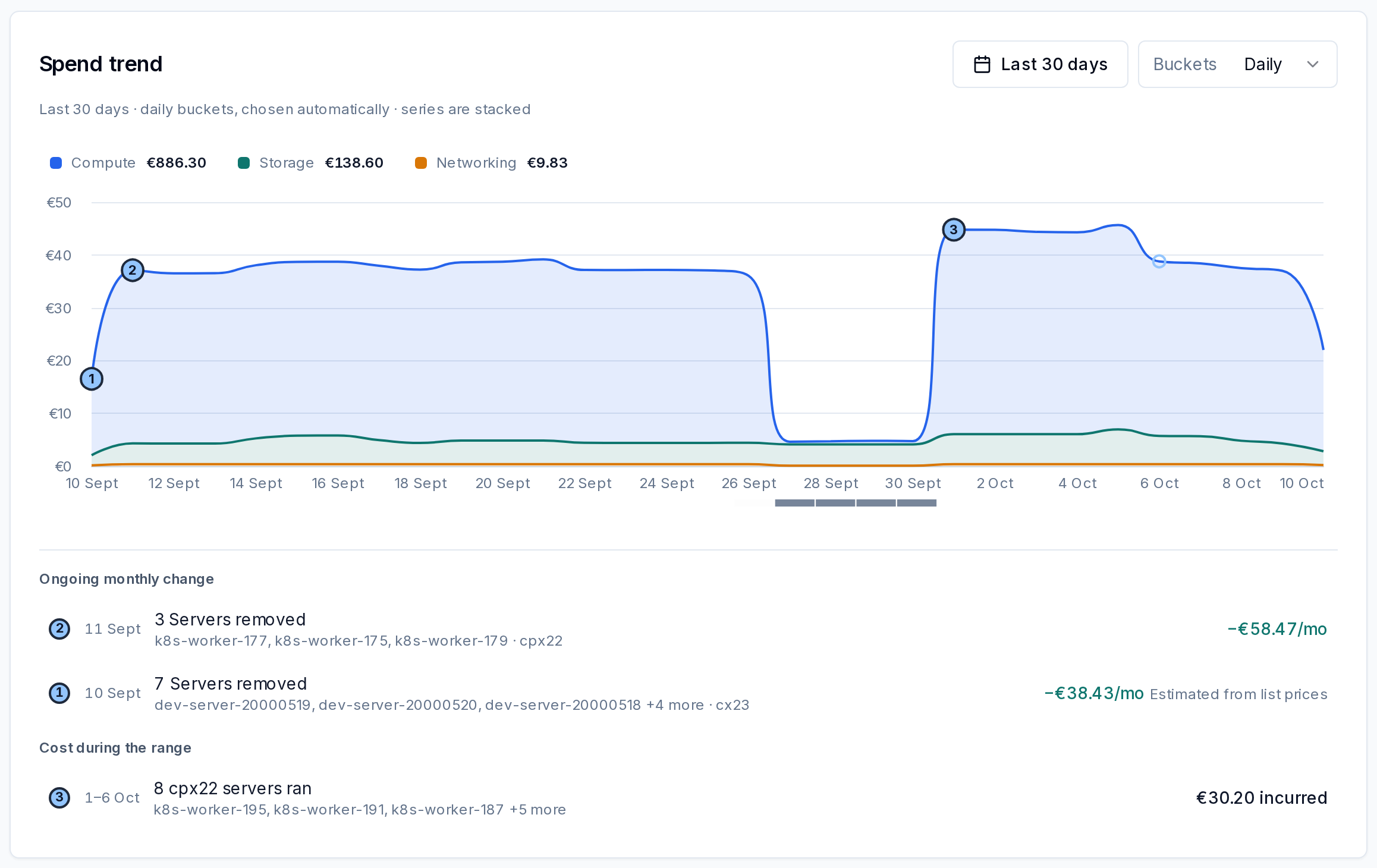
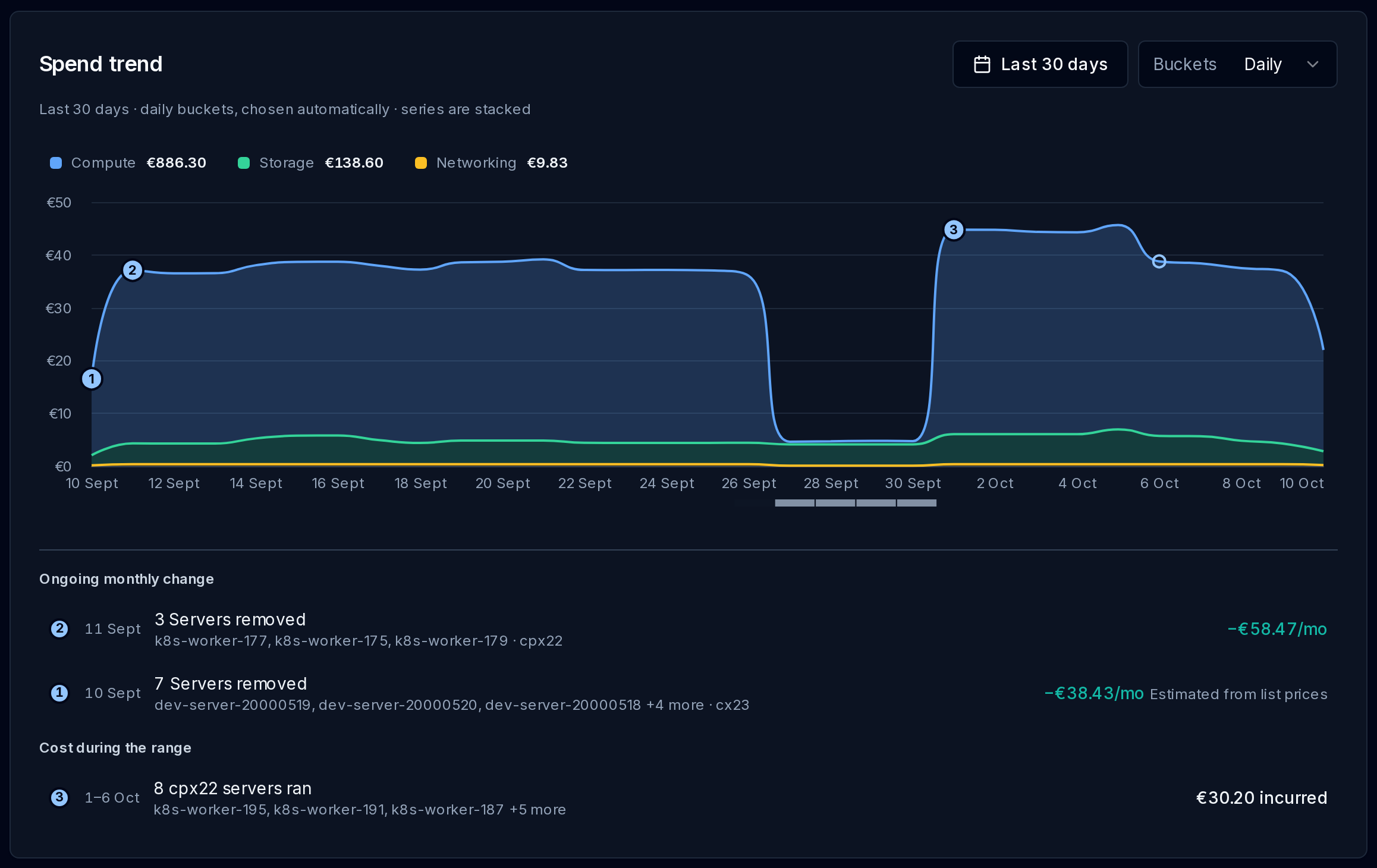
- When set to Auto, CloudTally selects an appropriate bucket size for the chosen date span. The subtitle states the chosen interval, for example daily buckets for Last 30 days.
- Some intervals are disabled for longer ranges with Too many points for this range. For example, 1h and 3h are unavailable for Last 30 days; choose a coarser interval or shorten the range.
Trend events
On Pro, numbered markers on the chart correspond to event entries below it. Read the two sections separately:
- Ongoing monthly change describes the continuing effect on monthly costs. For example, removing three servers can show −€58.47/mo.
- Cost during the range describes cost already incurred by a resource episode within the selected dates. For example, eight servers running from 1–6 Oct can show €30.20 incurred.
A cost incurred during the range is not necessarily a continuing monthly increase.
Cost distribution
The Cost distribution card displays spending across your infrastructure. You can change the perspective using the grouping selector:
- By resource type: Distributes costs across infrastructure types such as servers, block storage volumes, primary and floating IPs, load balancers, and snapshots.
- By project: For organisations with multiple connected projects, shows the relative spend of each project.
Hovering over distribution segments displays exact values for Cost and Resources.
Freshness, loading, and stale data states
- Update indicators: The sync status indicator in the navigation header displays when data was last updated (such as relative time), Syncing..., or Sync failed.
- Loading feedback: While updating, the card header shows Updating data.... If a query takes longer than usual, an alert displays Updating data is taking longer than expected. with a Retry button.
- Stale data banner: If one or more connected projects experience an update error, a banner at the top of the dashboard warns: Some sources are showing stale data, noting that the dashboard may include stale spend data until the connection is resolved.
- Initial state: If your organisation has not connected any infrastructure, the dashboard shows No cost data yet with an action button to Add project.
Next steps
-
Review resource costs — Check individual costs for a selected period.
-
Connect a Hetzner project: Follow setup steps to add a read-only token in Connect your Hetzner project.
-
Configure project settings and sync: Learn about permissions, token rotation, and project management in Manage connected projects and sync settings.