Use CloudTally
See what a label group costs
Filter Explorer by a label to check spend, current run rate, this month's forecast and savings, then compare label values.
Last updated: 2026-10-15
On this page
Use Explorer to see what a cluster or environment costs and where you could reduce its bill. Filter by a label to read that group's spend, current run rate, forecast and savings candidates together. Then compare values of a label key to find the largest spenders.
You need a connected Hetzner project with cost history. If you have not connected one, start with Connect your Hetzner project.
Step 1: Choose the period
Open Explorer from the navigation and choose a date range above the view tabs. Start with Last 30 days for a recent comparison, or This month to check the current billing month.
The filter bar sits above the scope summary and the view tabs. Its filters apply to every view, including Overview, Why spend changed and Cost breakdown. Switching views keeps your scope.
Step 2: Select a label group
Open Labels and select a value for the k8s-cluster key. Pick your own cluster's value from the list; the demo's cluster values are generated and can change. Close the menu to read the summary below the filters.
You can narrow the same scope with Resource Type, Projects or Location. Check these filters if a cluster spans several projects or locations.
The scope summary answers four different questions:
| Figure | What it covers |
|---|---|
| Spend | Cost recorded for the selected date range, shown beside the heading. |
| Run rate now | Monthly price of the matching resources that exist now, excluding usage-based charges such as traffic. |
| The current month's forecast | Expected total for the current calendar month, even when your selected range covers another period. |
| Savings candidates | Estimated monthly savings from open recommendations for matching resources, rather than savings already made during the range. |
The forecast heading names its month. Smart forecast identifies the Pro forecast method; otherwise the card says Projected from spend so far this month. Label filtering, grouping and the scope summary are available on Free too.


Step 3: Compare label values
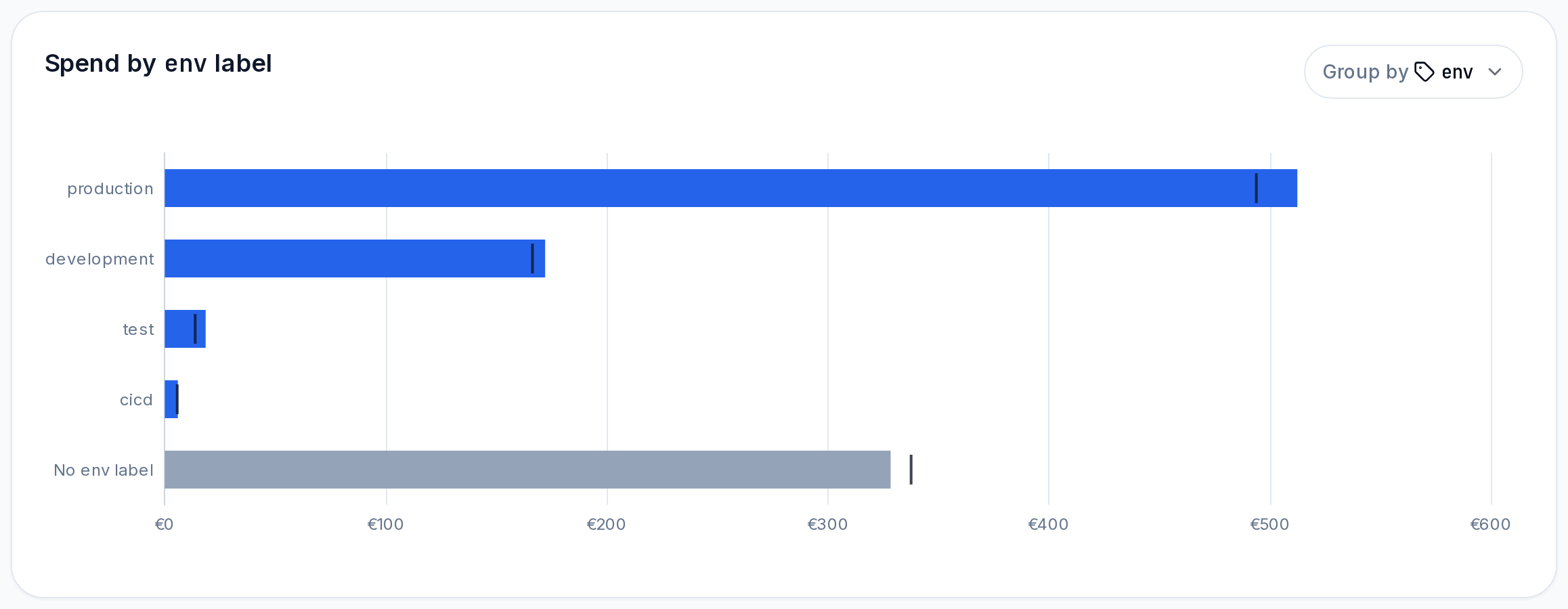
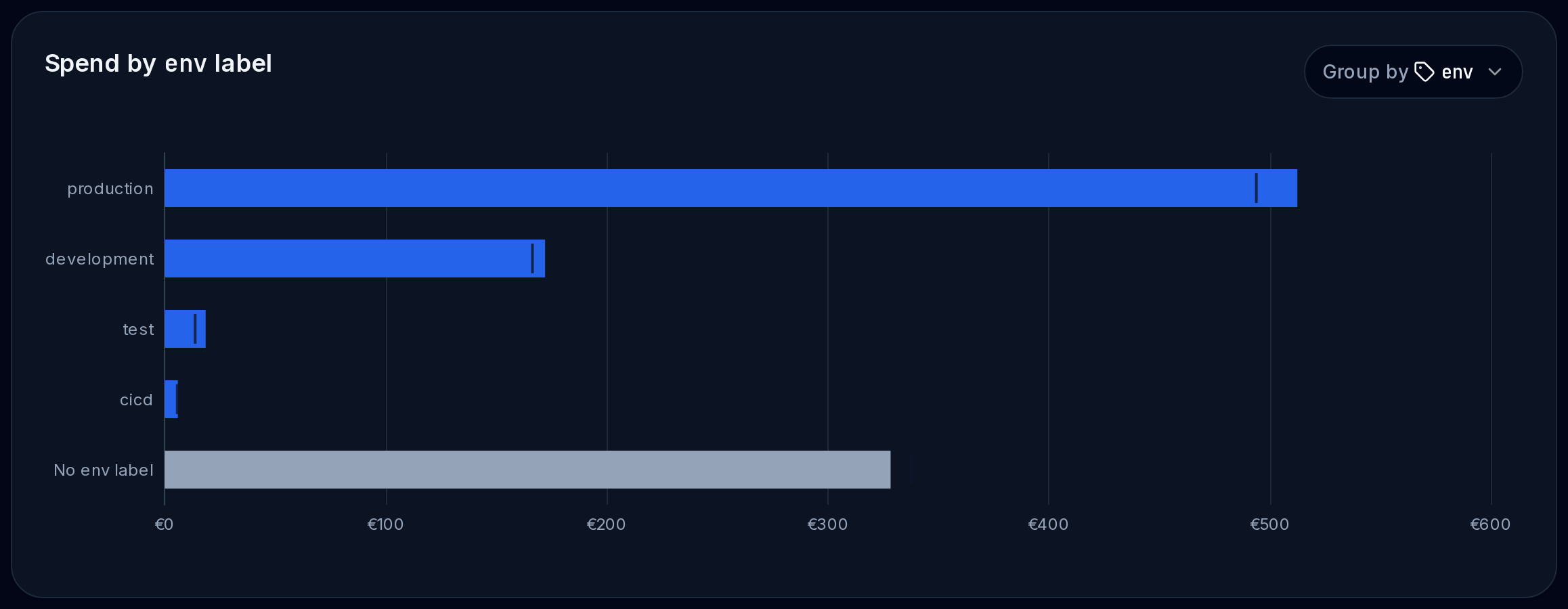
Select Cost breakdown, open Group by and choose env under Label keys. The selection is named Label · env. The chart compares spend for each value, such as production, development and test, within your current filters and date range.
Keep the k8s-cluster filter to compare environments inside that cluster. To compare environments across your infrastructure, choose Clear filters first. Grouping changes the comparison; it does not clear your filters.
Read No env label as spend on resources without an env label. It stays separate from Other, which combines labelled values beyond the top 10. These summary bars do not open a resource list.
Step 4: Inspect the resources behind a value
Click a named value's bar or its row in the drivers table, for example production. Explorer adds that label value to your filters and switches the grouping to Resource. Other filters stay in place.
Use the resource rows to find the largest costs, then select Inspect to open a resource's history. See Investigate why spend changed for the cost timeline and resource events.
To return to the comparison, clear the selected env value in Labels and choose env in Group by again. Keep the cluster label selected if you still want to compare within that cluster.
Step 5: Review savings for the group
When Savings candidates shows open recommendations, click its linked monthly amount. Recommendations opens with the same label, resource type, project and location filters. The Explorer date range does not limit the recommendations: they describe current savings opportunities.
Check the Showing recommendations for: banner to confirm the scope. Review the findings using Find waste and review rightsizing. Select Show all in the banner to remove the scope filters and see recommendations across your organisation.
If the card says No open recommendations, there is no savings link for this scope. A missing savings section means your access does not include recommendations.
Why numbers can differ
Explorer follows each resource's current labels, so relabelling a resource moves all its cost in the selected range to the new value. A label-scoped budget counts labels recorded with each cost instead. After a relabel, a budget and Explorer can therefore show different spend and forecasts for the same label.
Open the info icon named How labels are counted beside a label-filtered forecast or a label budget to check this distinction.
The run rate describes inventory now; spend covers the selected range. Deleted resources can contribute spend without contributing to today's run rate. Traffic can add spend without a fixed monthly price. If some resources have no price, the run-rate detail states how many were excluded. No fixed monthly price for the selected types means a monthly run rate is unavailable for those types.
The scope card's spend follows the Overview table. If you chose to display reconstructed history without adopting it, a chart can include that history while the card excludes it. The card's forecast is for the current month; the forecast drawn on the Overview chart can use a different projection.
Troubleshooting
- No matching labels or no cost data: check the date range and other filters, or choose Clear filters and select the label again.
- The summary is loading: wait for its figures to appear after changing the scope.
- Could not load the scope summary.: select Retry in the card.