Use CloudTally
Find waste and review rightsizing
Find idle Hetzner resources, assess rightsizing recommendations against observed utilisation, review estimated savings, and export findings for your team.
Last updated: 2026-10-10
On this page
CloudTally reviews your Hetzner Cloud infrastructure to uncover two primary sources of waste: idle resources that incur hourly charges without producing workload value, and overprovisioned servers running on larger plans than observed utilisation requires.
Operating with read-only access, CloudTally never alters, downsizes, or deletes infrastructure. Instead, it provides evidence-backed recommendations, estimated monthly savings, and CSV exports so your team can evaluate changes and execute them in the Hetzner Cloud Console.
Costs and savings use your organisation’s display currency. Check the read-only Display currency field under Settings → General. For the shared cost display default, see Display currency and VAT.
Prerequisites
Before reviewing recommendations, ensure:
- Connected at least one Hetzner project with active data synchronisation (see Connect your first Hetzner project).
- Sufficient observation history:
- Telemetry-based idle servers and load balancers: up to 7 days of metrics to evaluate inactivity. Detached volumes and unassigned IPs use existence and assignment age checks.
- Rightsizing: requires at least 14 days of metric collection to capture a representative workload baseline.
- Access to the Hetzner Cloud Console with permissions to resize or delete resources.
Open the recommendations view
To review active recommendations:
- Open your CloudTally workspace.
- In the navigation sidebar, locate the Optimize section.
- Click Recommendations.
At the top of the page, the summary bar aggregates potential cost recoveries across your connected projects:
- Potential monthly savings: estimated monthly reduction in spend if all open recommendations are addressed, shown as a per-month amount.
- Annualised: projected savings extrapolated across a twelve-month period.
- Resources flagged: total count of resources with active recommendations.
- Export CSV: exports all open findings into a tabular
recommendations.csvfile for offline analysis or team review.
Below the summary cards, findings are grouped into two categories: Idle resources and Rightsizing.
Category 1: Review idle resources
The Idle resources table identifies cloud components that continue to accumulate hourly charges despite minimal or zero workload activity.
Flagged resource types include:
- Unused servers: servers displaying sustained low CPU utilisation, flat disk activity, and negligible network traffic.
- Detached volumes: block storage volumes unattached to any server.
- Unassigned IP addresses: primary or floating IP addresses without assignment to active servers or load balancers.
- Idle load balancers: load balancers processing zero traffic over the evaluation period.
The table displays:
- Resource: the resource name and identifier in Hetzner Cloud.
- Finding: the specific inactivity trigger, such as sustained low CPU utilisation or detached volume status.
- Resource type: the resource category (such as Server, Volume, or Primary IP).
- Current cost: the monthly cost currently billed by Hetzner for maintaining the resource.
- Est. savings: the reclaimable monthly amount if the resource is decommissioned.
- Actions: options to manage or dismiss the finding.
Take action on idle resources in Hetzner
To stop charges for an idle resource:
- Identify the flagged resource name and location in CloudTally.
- Log in to the Hetzner Cloud Console and navigate to the corresponding project.
- Review whether the resource is required for disaster recovery, staging, or planned deployments.
- If the resource is genuinely abandoned, delete it in Hetzner Cloud.
In Hetzner Cloud, stopped servers continue to be billed until they are deleted, as documented in the official Hetzner Cloud billing FAQ. Powering off a server halts operating-system execution but does not stop billing; you must delete the server in the Hetzner Cloud Console to eliminate monthly charges.
Category 2: Review rightsizing recommendations
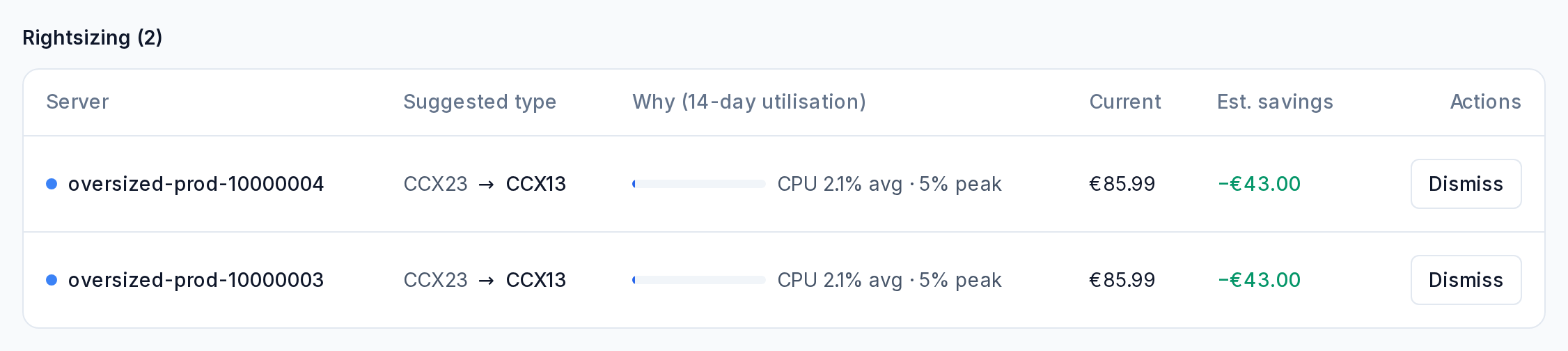
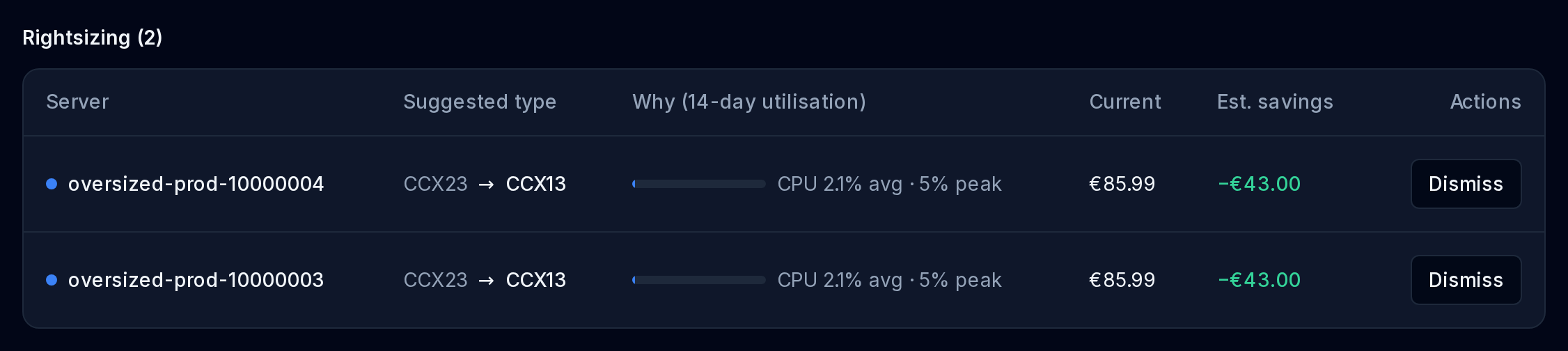
The Rightsizing table identifies servers whose sustained workloads require only a fraction of their provisioned compute capacity. CloudTally compares 14 days of observed telemetry—including average CPU, peak CPU, disk IOPS, and activity coverage—against available Hetzner server plans to identify smaller, cost-effective alternatives.
The rightsizing table presents:
- Server: the server name and project.
- Suggested type: the recommended target plan (for example, moving from a
CPX31to aCPX21). - Why (14-day utilisation): supporting metric evidence, including observed average and peak CPU utilisation over the past two weeks.
- Current: the current monthly price billed for the existing server.
- Est. savings: the calculated difference between your current price and the target plan catalogue price.
- Actions: options to dismiss or retain the recommendation.
Servers on a locked legacy price
Some older servers are still billed at a rate from before a Hetzner price change. Current shows that billed rate, and Est. savings compares it with today's price for the suggested type, so the saving already allows for losing the old rate. CloudTally never suggests a resize that would not save money.
A badge next to the current price marks these servers:
- Loses locked price: resizing gives up the old rate for good. Hover over or focus the badge to see the locked, catalogue and after-resize prices.
- Plan discontinued: Hetzner no longer sells this server type. Resizing gives up its rate too, and you cannot move back to the type afterwards.
Execute rightsizing in Hetzner
To resize an overprovisioned server:
- Open the Hetzner Cloud Console and locate the server.
- Schedule a maintenance window, as resizing a cloud server requires shutting it down.
- In Hetzner Cloud Console, power off the server, navigate to Rescaling, select the suggested target plan, and initiate the resize.
- Power the server back on and verify application performance under normal operational traffic.
Manage and dismiss recommendations
If a recommendation is not suitable for your architecture—such as seasonal spikes or planned migrations—you can remove it from active views:
- On the recommendation row, click Dismiss.
- Select an appropriate reason:
- False positive: the resource requires its current provisioning level despite low metric averages.
- Not applicable: the recommendation does not apply to this workload.
- Planned change already underway: decommissioning or alteration is already scheduled.
- Other: custom operational rationale.
- The recommendation moves to the Dismissed tab and deducts its projected saving from your active total.
To audit dismissed findings, switch to the Dismissed tab. Items remain available for reference and auditing.
Dismissing recommendations requires the Member, Admin, or Owner role. Users with the Viewer role can inspect recommendations and export CSV summaries but cannot alter recommendation statuses.
Understanding assessment and telemetry states
The recommendations page surfaces several informative system states based on assessment readiness:
- Loading recommendations: the latest assessment data is being fetched.
- Recommendations are being generated: metric collection is processing initial calculations across your resources.
- More telemetry is needed: newly connected servers have not yet accumulated the required evaluation period. The panel indicates the date when sufficient telemetry will allow complete assessment.
- No savings opportunities found: CloudTally evaluated your fleet and found no idle components or oversized servers.
- Recommendation assessment failed: an issue prevented assessment generation. Refresh the page or check sync health.
Plan capabilities and quotas
Both Free and Pro plans include full access to idle resource detection, server rightsizing suggestions, observed metric evidence, and CSV exports.
Tier differences relate to fleet scale and cost-history visibility:
- Free plan: supports 1 connected Hetzner project and up to 62 days of read-time cost-history visibility.
- Pro plan: supports up to 10 connected Hetzner projects and up to 365 days of cost-history visibility across your multi-project estate.
To connect additional projects or manage connections, see Manage Hetzner projects and data sync.
Troubleshooting
Why is an inactive server not flagged as idle?
A server may not appear in the idle list if:
- Insufficient history: the server was launched recently and has not reached the observation window.
- Periodic utilisation spikes: automated backup jobs, log indexing, or cron tasks that elevate CPU utilisation above the idle threshold keep the server from being classified as idle.
- Telemetry collection sync: inspect your connection status in Manage Hetzner projects and data sync to confirm that the project token is active.
Why is rightsizing not suggested for a server?
Rightsizing suggestions require at least 14 days of telemetry. In addition, servers with bursty CPU patterns or low activity coverage are excluded to maintain workload headroom and stability. If spend on a particular server has changed significantly, use Investigate why spend changed to explore its historical usage pattern.