Use CloudTally
Configure alerts and notifications
Set up notification delivery channels, manage alert type preferences, configure custom routing rules, and monitor delivery health in CloudTally.
Last updated: 2026-10-09
On this page
Timely infrastructure notifications protect organisations from budget overruns, synchronisation interruptions, and unexpected cost surges. CloudTally divides notifications into two areas: a personal in-app inbox for operational awareness, and an organisation alert centre for delivery channels, routing rules, and alert preferences.
This guide explains how to manage your in-app inbox, configure email and Slack delivery channels, build targeted routing rules on Pro, and manage alert type preferences.
CloudTally provides read-only monitoring and alerting. Receiving an alert notification does not modify, restart, or delete running Hetzner infrastructure. Operational actions must be carried out directly in your Hetzner Cloud Console.
Prerequisites
Before configuring notification channels and routing rules, ensure that:
- You have an active CloudTally account with appropriate organisation permissions:
- Owner and Admin: Can create, edit, pause, and remove delivery channels, replace webhook secrets, configure routing rules, and set organisation alert defaults.
- Member and Viewer: Have read-only access to organisation alert settings, but can manage their personal alert-type preferences.
- All users across all roles have access to their personal in-app notification inbox.
- At least one Hetzner project is connected and updating (Connect your Hetzner project).
The in-app inbox
Every CloudTally user has a personal in-app notification inbox accessible via the bell icon or Notifications (/notifications) in the main navigation.
The in-app inbox provides:
- Unread counter: Displays active notifications requiring review ( unread).
- Filtering: Switch between Unread and All notifications.
- Severity indicators:
- Info: Informational updates, such as a generated report or system notice.
- Warning: Emerging issues, such as an 80% budget threshold crossing or waste detection notice.
- Critical: Severe conditions, such as an exceeded budget or a sync failure due to an invalid API token.
- Contextual action shortcuts: Notification items provide direct links to address the underlying issue, such as View budget, Update token, or View details.
- Bulk action: Select Mark all read to clear unread counts across displayed notices.
Read budget alert bases
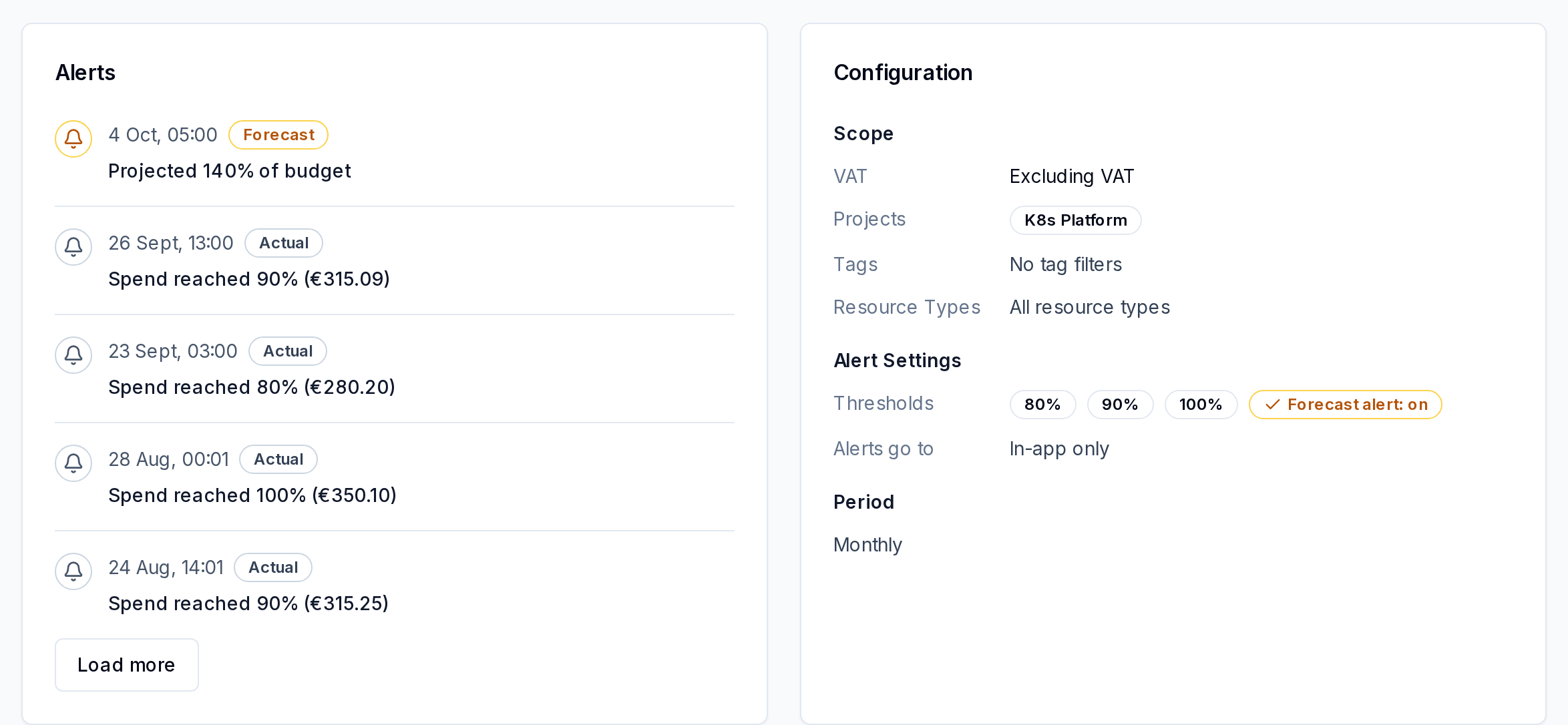
In a budget’s Alerts timeline, Actual records spend that has already crossed a threshold. Forecast is an early warning based on projected spend at the end of the period.
Enable Send forecast alerts in the budget form to receive forecast warnings. Turning this off does not change the forecast or the budget’s status. Open the budget detail to review the timeline and saved settings. Use Load more to review older entries, and check Alerts go to in Configuration for the routing summary.
Configuring delivery channels
To send notifications outside CloudTally to team members or messaging tools, an Owner or Admin configures delivery channels.
From the main navigation, select Settings → Alerts (/settings/alerts), then select the Channels tab.
The In-app default channel
The In-app channel is created automatically for every organisation. It is Always on and Protected, serving as the primary delivery channel for all organisation members, subject to personal and organisation alert-type preferences.
Adding an Email channel
Email channels deliver notifications to team inboxes or individual stakeholders.
On the Free plan, email delivery uses the organisation Owner/Admin default recipient set. Custom or additional recipient addresses are available on Pro.
- In the Channels tab, click Add channel and choose Email.
- In the dialogue, enter:
- Channel name: A descriptive label (such as
FinOps DistributionorPlatform On-Call). - Recipients: One or more valid email addresses.
- Channel name: A descriptive label (such as
- Click Add channel. CloudTally saves the channel and evaluates its verification status. Once saved, the channel appears with a Healthy or Not verified badge.
Adding a Slack channel (Pro plan)
To connect a Slack channel:
- In your Slack workspace, create an Incoming Webhook for your target channel.
- In CloudTally, click Add channel and choose Slack.
- In the dialogue, enter:
- Channel name: A clear name (such as
#infra-alerts). - Slack webhook URL: Paste the webhook URL generated by Slack (
https://hooks.slack.com/services/...).
- Channel name: A clear name (such as
- Click Add channel. CloudTally validates the endpoint probe before saving.
Managing channel health and maintenance
Each configured channel displays its current operational state:
- Healthy: The channel is validated and ready for delivery.
- Degraded: Intermittent delivery difficulties detected.
- Failing: Deliveries cannot be completed. A remediation action is displayed (such as Replace secret or Fix the recipients).
- Not verified: The channel is saved, but verification has not yet completed.
- Paused: Delivery is temporarily silenced by an administrator.
Channel maintenance actions
Open the actions menu (...) on any channel row to perform maintenance:
- Re-validate: Triggers a verification probe to confirm connectivity.
- Rename: Modifies the channel's display name.
- Replace secret: Updates the Slack webhook URL without revealing the existing secret.
- Edit recipients: Modifies recipient email addresses on email channels.
- Pause / Resume: Temporarily stops deliveries during maintenance windows without removing the channel.
- Remove: Permanently deletes the channel upon name confirmation. Historical delivery records remain preserved.
Configuring routing rules
From Settings → Alerts, select the Routing tab to review how alerts reach destinations.
Default destinations (All plans)
The Default destinations section defines catch-all destinations. Any alert that does not match a custom routing rule is delivered to these channels. The In-app channel serves as the permanent default.
On the Free plan, all alerts go to your default channels.
Custom routing rules (Pro plan)
Custom routing rules map specific event types and minimum severities to dedicated channels. To add one:
- Under Routing rules, click Add rule.
- Configure rule parameters:
- Event: Select an event category from the catalogue:
- All events: Matches all incoming alerts.
- Budget alerts: Actual spend crossing a threshold or a forecast warning about projected spend (Create and manage budgets).
- Waste alerts: Notifications for unattached volumes or idle resources.
- Cost spikes: Rapid, unexpected spending increases (Investigate why spend changed).
- Anomalies: Statistical expenditure anomalies.
- Recommendations: Rightsizing or cost-saving opportunities.
- Sync failures: Connection or credential errors (Manage Hetzner projects and data sync).
- Reports: Ready notices for scheduled cost reports.
- System notices: General platform and account notices.
- Minimum severity: Choose Info, Warning, or Critical. The rule delivers alerts meeting or exceeding this severity.
- Channel: Select the destination delivery channel.
- Event: Select an event category from the catalogue:
- Click Save rule.
Managing alert type preferences
Select the Alert types tab to manage notification category preferences:
- Your inbox: All users can toggle which alert categories appear in their personal in-app inbox.
- Organisation defaults: Owners and Admins can configure baseline toggles for the entire organisation.
- If an alert category is muted at the organisation level, it is silenced across all channels and cannot be enabled individually.
Troubleshooting
Expected alert was not delivered
- Check in-app notifications: Open Notifications (
/notifications). If the notice appears there, CloudTally triggered the event successfully, and the issue involves external delivery or routing. - Review minimum severity in routing rules: If a custom rule requires Critical severity, it will not deliver Warning alerts (such as an 80% budget alert). Lower the minimum severity to Warning or Info.
- Check alert type preferences: Confirm that the relevant alert category is not muted under Your inbox or Organisation defaults.
- Verify channel health: In the Channels tab, confirm that your channel shows a Healthy badge. If it shows Failing, use Re-validate or Replace secret to restore connectivity.
- Check spam filters: Ensure automated messages from CloudTally are not filtered by email spam rules.
Related guides
- Create and manage budgets — Configure spend limits and define alert thresholds.
- Investigate why spend changed — Trace infrastructure changes behind cost alerts.
- Understand your dashboard — Monitor spend trends and active budget health.