Use CloudTally
Create and schedule cost reports
Review monthly cost breakdowns in your browser, queue on-demand report deliveries, and configure monthly report schedules.
Last updated: 2026-10-09
On this page
CloudTally generates monthly cost reports that synthesise infrastructure spending, highlight month-over-month variances, and identify which projects, resource types, and locations drove changes in your Hetzner Cloud bill.
Reports are designed for in-browser inspection, with optional on-demand dispatch and automated monthly delivery via email and in-app notifications.
Prerequisites
Before viewing or scheduling cost reports, ensure:
- Connected at least one Hetzner project with active data synchronisation (see Connect your first Hetzner project).
- Your organisation has recorded cost data for at least one calendar month.
- You have the appropriate role:
- Viewer: can view reports in the browser.
- Member: can view reports in the browser and queue on-demand report dispatches.
- Admin or Owner: can view reports, queue on-demand sends, configure recurring monthly schedules, and update recipient delivery channels.
Inspect reports in your browser
To view monthly cost reports:
- Open your CloudTally workspace.
- In the navigation sidebar, click Reports.
- Use the scope toolbar at the top to select:
- Period: choose between the current open month or previously closed calendar months (such as September 2026).
- Project: view spending across all connected projects or filter to a single Hetzner project.
In-browser report layout
CloudTally reports are rendered directly in your web browser. Note that there is no report-file download option: CloudTally does not generate CSV, PDF, or JSON report files.
The report contains five analytical sections:
- Executive summary: presents opening spend, closing spend, net change, and active resource counts for the chosen period.
- Category variance chart: a step-by-step waterfall illustrating cost movements between the opening and closing totals across specific categories, such as added servers, server resizing, and removed infrastructure.
- Spend breakdowns: splits your monthly bill across three dimensions:
- By type: servers, volumes, primary IPs, floating IPs, and load balancers.
- By project: allocation across connected Hetzner projects.
- By location: expenditure across Hetzner data centres (such as Falkenstein, Nuremberg, or Helsinki).
- Spend movers: lists the individual resources accounting for the largest total spend, as well as the resources with the largest cost increases compared to the previous period.
- Metadata footer: shows Last successful sync and Report period (for example, 1 Sept 2026 – 1 Oct 2026), with a link back to your dashboard.
Share and schedule reports
To distribute reports to your team, click Share and schedule in the toolbar. This opens the Email cost report drawer.
CloudTally delivers reports through two mechanisms:
- In-app notifications: delivered to your workspace notification inbox.
- Email notifications: formatted summary emails sent to designated recipient addresses.
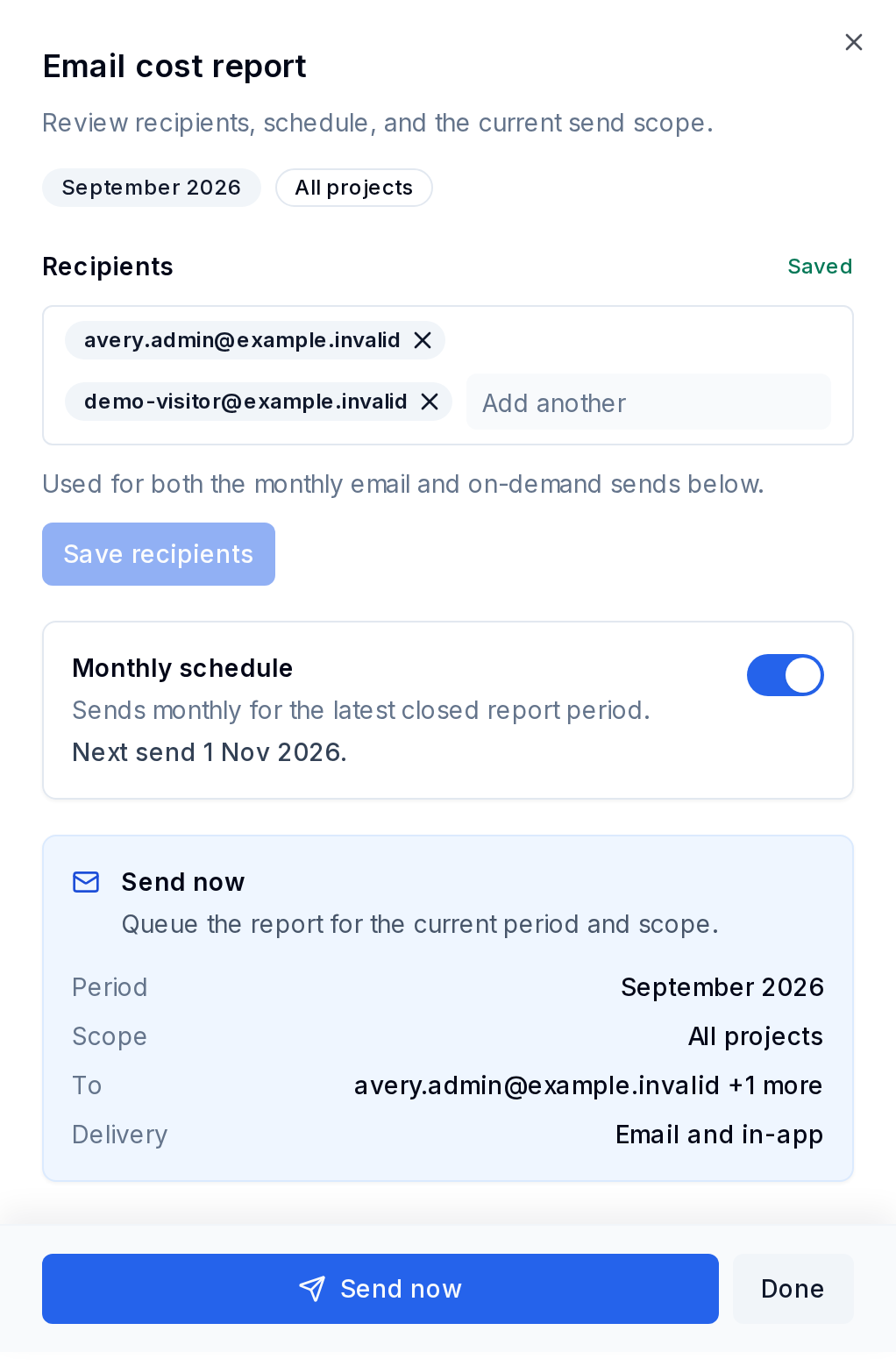
Option 1: Queue an on-demand report send
Users with the Member, Admin, or Owner role can queue an on-demand report send for the currently displayed report:
- In the Email cost report drawer, locate the Send now section.
- Review the displayed period, project scope, and recipient list.
- Confirm that the delivery mode shows Email and in-app.
- Click Send now.
CloudTally queues the delivery. Recipient inboxes receive the report summary alongside an in-app notification once processing finishes.
On-demand delivery requires completed cost hours. If you attempt to send an open report for the current month before initial hourly data has finished processing, CloudTally will decline the send request until cost data is complete.
Option 2: Configure a recurring monthly schedule
Automating monthly reporting requires the Admin or Owner role:
- In the Email cost report drawer, locate the Monthly schedule section.
- Toggle the Monthly schedule switch on.
- The drawer displays the next scheduled send date (the first day of the following calendar month in UTC).
When enabled, CloudTally automatically queues delivery of the latest completed monthly report to your saved recipients as soon as the closed period's cost data is processed.
Configure report recipients
Managing recipient channels requires the Admin or Owner role. In the Recipients section of the drawer:
- Review the saved recipient email addresses.
- To add or adjust recipients, enter valid email addresses and click Save recipients.
- Save changes before clicking Send now.
Plan limits and tier differences
Access to historical reports and breakdown depth depends on your subscription tier:
Historical archive access
- Free plan: can view the current open month and the prior closed month.
- Pro plan: can view the full report archive within its 365-day visible-history window.
Project breakdown visibility
- Free plan: includes the By type and By location breakdown sections. The By project breakdown is available on Pro.
- Pro plan: displays full spend breakdowns across all connected projects simultaneously.
Email recipient limits
Recipient allowances depend on your plan:
- Free plan: uses the organisation Owner/Admin default recipient address.
- Pro plan: supports multiple custom recipient email addresses for both on-demand and monthly scheduled dispatches.
To learn more about alert channels and notification routing, see Configure alerts and notifications.
Troubleshooting
Why does sending fail with a data preparation notice?
If Send now fails with a message that cost data is still being prepared, the selected open period contains hours that have not yet finished synchronising. Wait until hourly data catch-up finishes or select a closed historical month.
Why is delivery marked as in-app only?
If the delivery indicator displays In-app only, CloudTally cannot send emails for one of these reasons:
- No default email channel: verify that an active email channel is configured in Configure alerts and notifications.
- Organisation paused: if workspace synchronisation or billing is paused, outgoing external emails are suppressed to prevent outdated notices.
- Unhealthy channel: check the Alerts settings page to ensure your email delivery channel is not degraded or failing verification.