Start
Manage Hetzner projects and data sync
Add and manage projects, check sync status, rotate your API token, and pause or disconnect projects in CloudTally.
Last updated: 2026-10-09
On this page
CloudTally centralises cost visibility across your Hetzner Cloud infrastructure in one workspace. Managing your connected projects involves reviewing update statuses, rotating credentials when an API token changes, pausing updates during maintenance, or disconnecting projects that are no longer tracked.
Project administration takes place under Settings → Projects.
Permissions
Access to project actions depends on your organisation role:
- Owner and Admin: Can manage project lifecycles, including adding projects, rotating tokens, pausing, resuming, disconnecting, and reactivating projects.
- Owner: Holds exclusive access to the Switch action on the Free plan to change which project is actively updating.
- Member: Can trigger available on-demand updates (such as Sync Now on the Pro plan), but cannot modify connection settings or lifecycle states.
- Viewer: Has read-only access to project lists and statuses.
Project list overview
The Projects page organises connections into two tabs:
- Active: Displays connected projects that are actively updating or paused.
- Removed: Lists disconnected projects that can be reactivated to restore historical tracking.
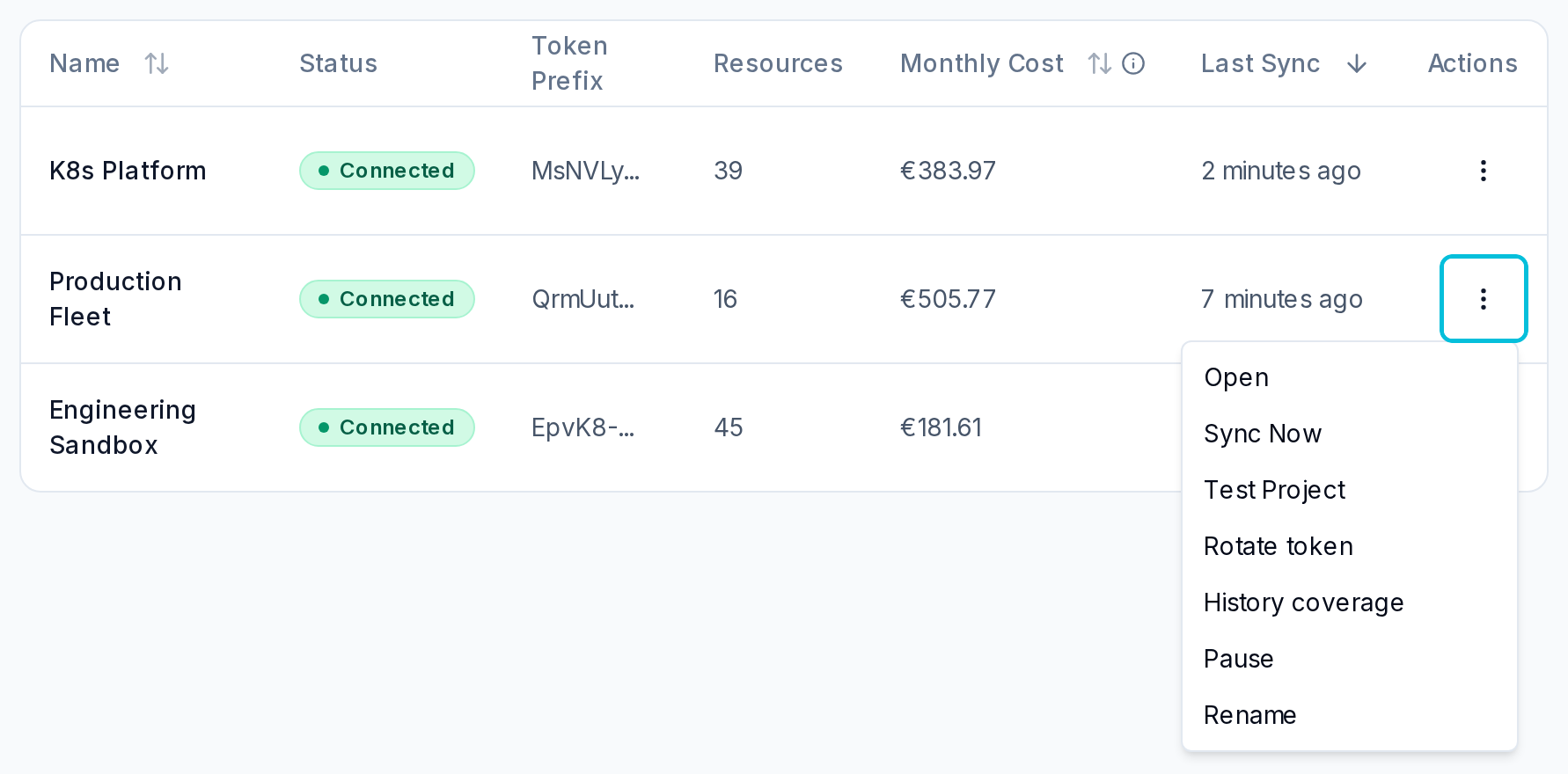
The table in the Active tab displays the current operational state of each connection:
- Name: The project display name.
- Status: The state badge (Connected, Syncing, Paused, or Error).
- Token Prefix: The beginning characters of the stored token for verification.
- Resources: The count of currently tracked resources in the project.
- Monthly Cost: Estimated monthly cost based on current resource pricing.
- Last Sync: Time elapsed since the most recent successful update.
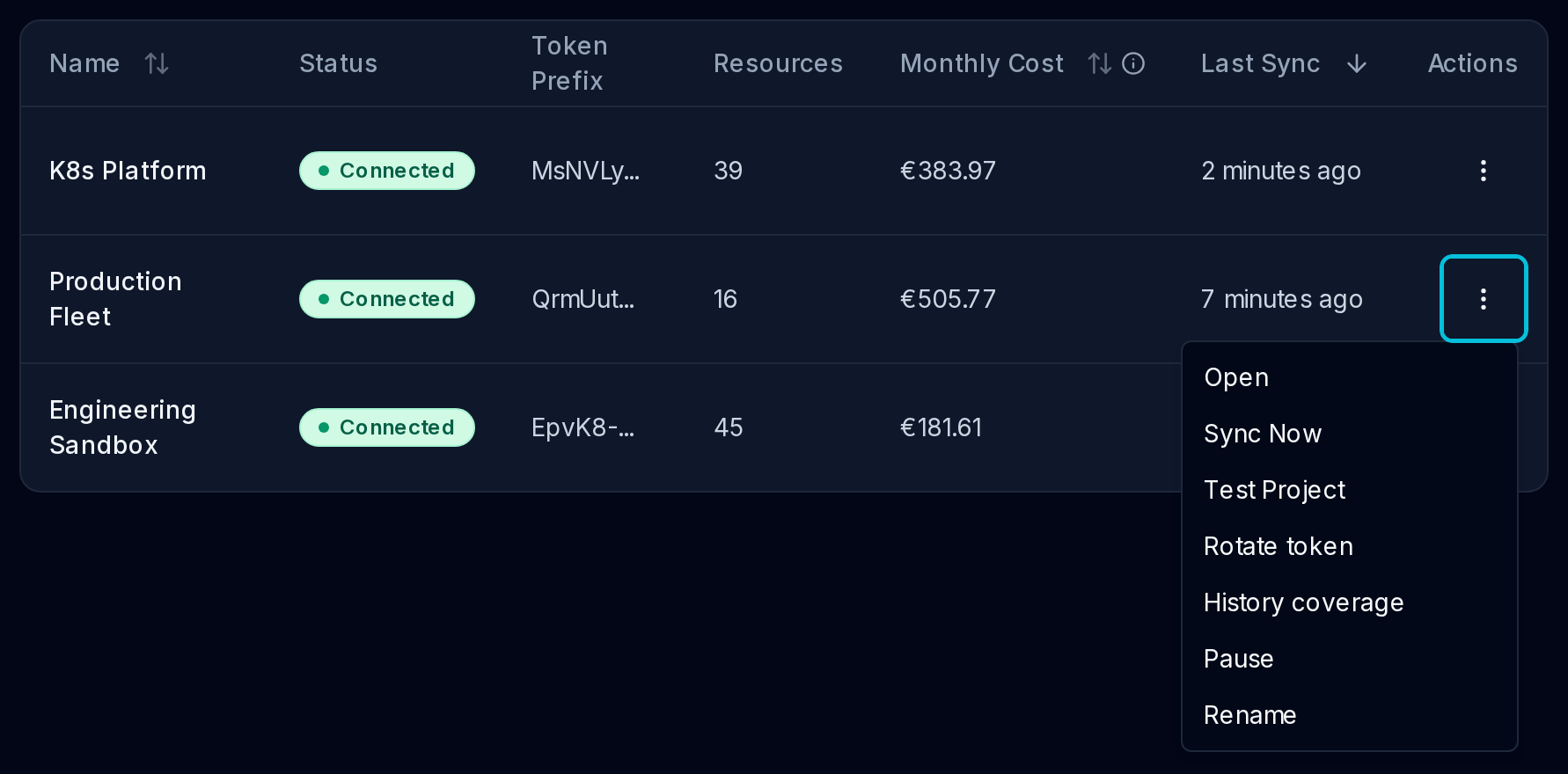
The action menu at the end of each row contains contextual actions, including Open, Sync Now (available on Pro), Test Project, Rotate token, History coverage, Pause, Resume, and Rename.
Tier limits and project quotas
Project capacity is determined by your organisation plan:
- Free plan: Free syncs one project at a time. If your organisation previously had multiple projects on Pro and moves to Free, additional projects remain in a paused state. Their historical data is preserved. An organisation Owner can use the Switch action (Switch active project?) at any time to select which project is active.
- Pro plan: Supports up to 10 active project connections. All active projects update according to the background schedule.
Update schedule
CloudTally schedules background updates every 15 minutes for Free and Pro.
On the Pro plan, you can also run updates on demand without waiting for the next scheduled interval:
- From the projects table row menu, select Sync Now.
- From the project detail page header, select Sync now.
- From the top navigation bar, select the sync indicator to trigger an update.
Project statuses
The status badge in the table and detail views reflects the latest update state:
- Connected: The project connection is active and the latest scheduled update completed cleanly.
- Syncing / Syncing...: An update is currently running.
- Paused: Background updates are suspended. Cost data up to the pause remains visible on the dashboard.
- Error / Sync failed: The update failed.
When an update fails, select Open on the project row to view the detail page. A banner displays the failure reason, the time of the last successful update, and an action to Rotate token.
Rotating an API token
You may need to rotate an API token if the token was revoked or expired in Hetzner, or when updating credentials to comply with internal policies:
- Generate a new read-only API token in the Hetzner Cloud Console for the same project per the Hetzner API token documentation.
- In CloudTally, navigate to Settings → Projects.
- Open the row action menu and choose Rotate token (or click Rotate token in the banner on the project detail page).
- In the dialog, paste the new token into the Hetzner API Token field.
- Click Rotate token.
CloudTally verifies that the replacement token has read-only permissions and matches the same Hetzner project. On validation, the token prefix updates, and CloudTally displays Token rotated and the confirmation API token updated successfully. For active connections, rotating the token updates stored credentials without triggering an unprompted update; upcoming scheduled updates use the new token. Existing cost history and resource records remain unchanged.
Pausing and resuming updates
You can suspend updates for any project without removing it:
- Pausing: Select Pause from the row menu. The confirmation dialog (Pause Project) confirms that Syncing will stop. Resume any time to continue. You can select whether CloudTally should Keep estimating costs while paused or treat the pause period as unobserved.
- Resuming: Select Resume from the row menu (or on Free, an Owner selects Switch). Scheduled 15-minute updates resume for the project.
Pausing a project never removes historical records; past spending remains accessible on your dashboard.
Disconnecting a project
When you no longer wish to track a project:
- In Settings → Projects, click Open on the project row.
- Scroll to the Danger zone card at the bottom of the page.
- Review the description: Stops syncing; keeps historical cost data.
- Click Disconnect.
- The confirmation modal (Disconnect project?) confirms: Syncing will stop. The API token will be deleted. Resource history and cost data are preserved. If disconnecting the last active project in your organisation, the modal notes that dashboards and forecasts will pause until a project is active.
- Click Disconnect project.
After disconnection, the project moves to the Removed tab. You can select Reactivate at any point and supply a valid read-only token to restore updates and reconnect historical records.
Next steps
- Connect another project: Follow the setup instructions in Connect your Hetzner project.
- Understand dashboard views: Learn how to read cost trends, budget indicators, and billing caps in Understand your CloudTally dashboard.